How to Make a Lyric Video with AI in 2026
The full Neural Frames lyric video workflow, plus the craft that makes lyric videos work: timing, typography, style, formats and release.
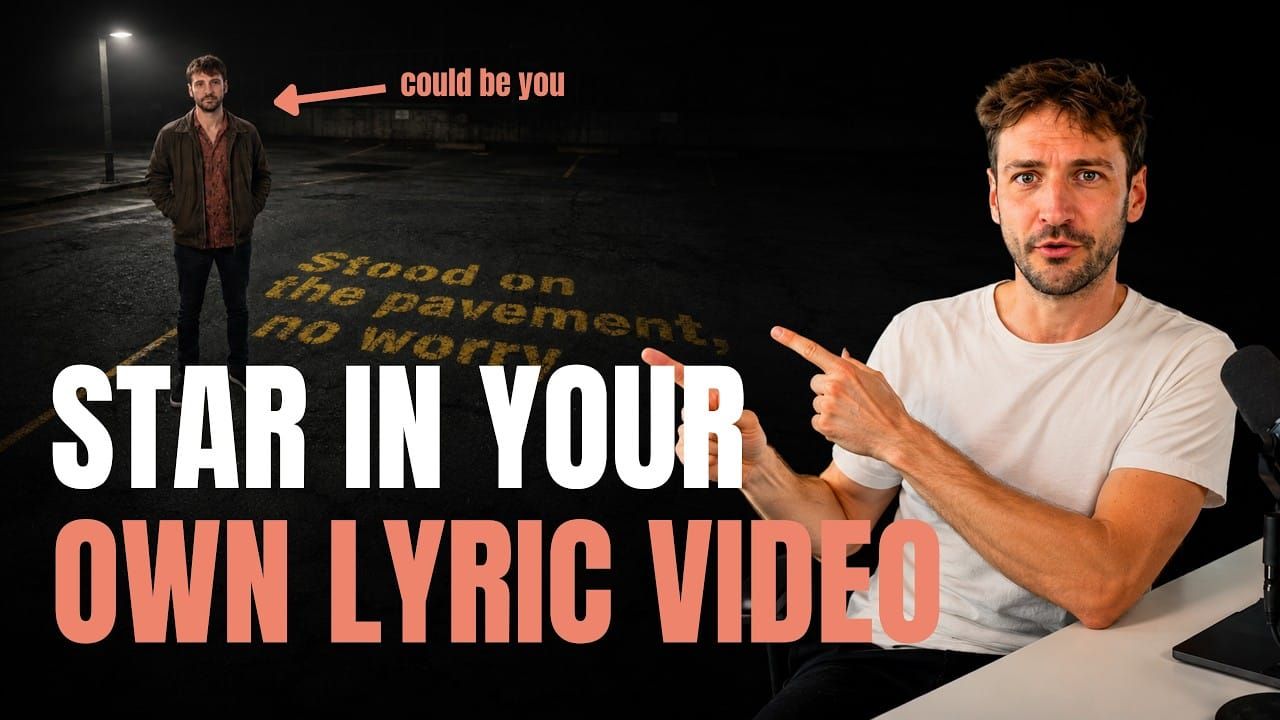
A lyric video is the cheapest official visual you can give a song, and often the one that works hardest. It catches people searching your song title plus "lyrics", it teaches fans the words, and it gives you a stack of short clips for socials.
This guide covers the exact Neural Frames workflow from our 2026 walkthrough video, then the craft that makes any lyric video good or bad: timing, typography, style, formats and release.
Looking for a comparison of lyric video tools instead? We covered that in The Best Lyric Video Makers for Adding Text to Music Videos. This post is the hands-on guide.
Why lyric videos are worth your time
Lyric videos became a standard part of a release more than a decade ago. In 2013, Billboard reported that labels had turned them from "an occasional stunt" into "a mandatory step in a song's rollout." Trevor Kelley, then VP of global digital marketing at Disney Music Group, called them "a given."
The same article explains why fans like them. Danny Lockwood of Capitol Music Group said they serve a practical purpose: "To learn the words to their favorite new song." And CeeLo Green, whose 2010 lyric video for "F– You" helped start the modern format, summed up the pitch: "It's an immediate and effective way to introduce new music."
There's also a defensive reason: if you don't post an official one, fans will post their own, often with wrong lyrics. Adobe's guide on lyric videos makes the same point: with official versions, "artists can ensure the lyrics are correct and put their own creative, thematic twist on the imagery." (Adobe)
For independent artists, the big advantage is cost: no shoot, just your song, your lyrics and a clear idea.
Step by step: making a lyric video in Neural Frames
Lyric Showcase doesn't lay text over a background. It generates scenes where the lyrics are part of the image (engraved in a wall, painted on a street, written on a mirror) and the visuals follow what the words say. Here's the workflow from our 2026 tutorial, where Nico makes a lyric video for a track by one of our team members and puts himself in it.
1. Upload your song
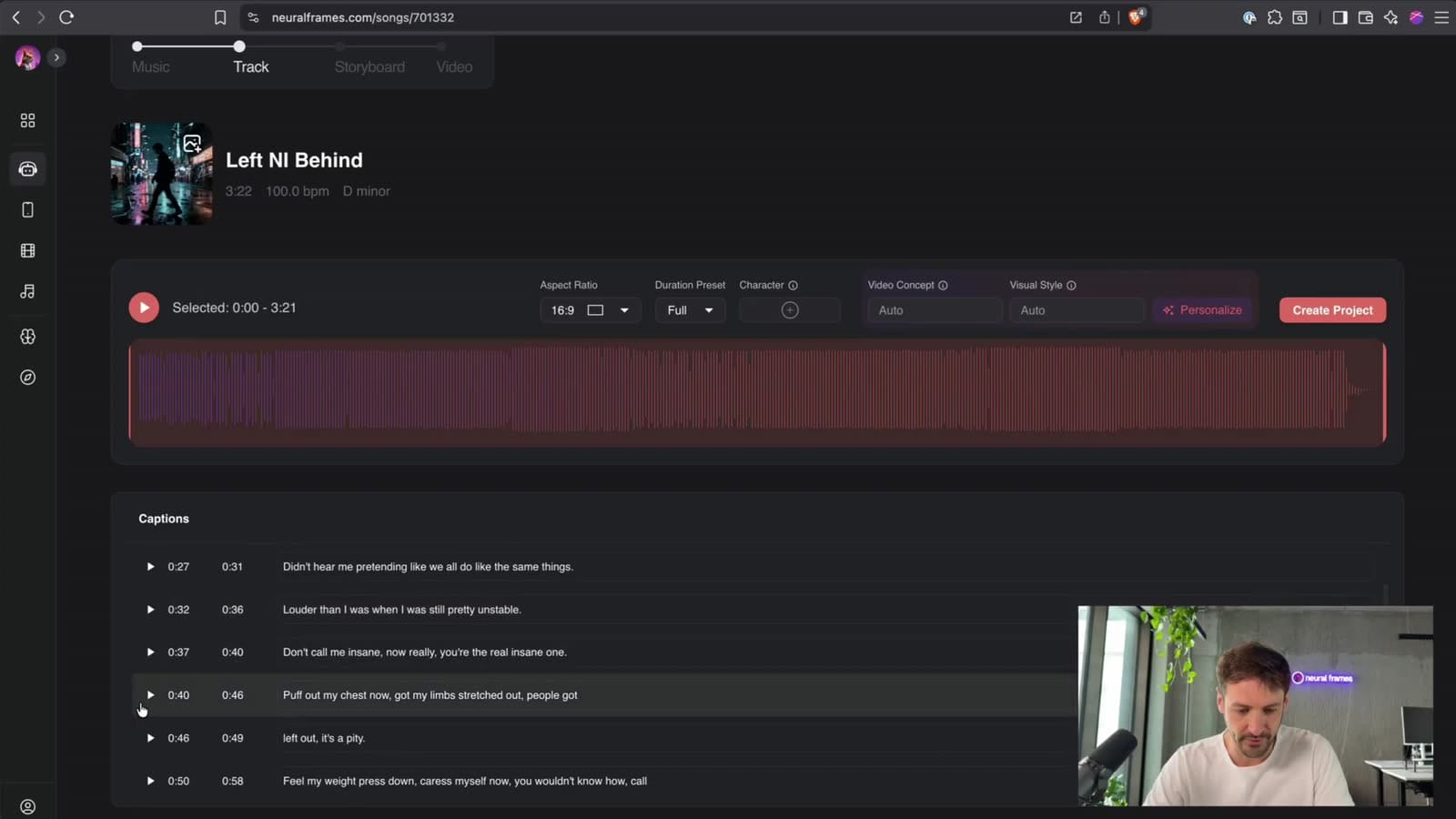
Upload your track on the songs page. Neural Frames analyzes it and extracts the lyrics, with a start and end time for every line. The bar above the waveform holds the main settings: aspect ratio, duration, character, video concept and visual style.
2. Check the lyrics before anything else
Read through the extracted lines while the song plays. Transcription is good but not perfect, and a typo in a lyric video is on screen for everyone to see. The Lyric Showcase option itself says it: "Make sure the lyrics are correct before creating the video."
Two things to look for:
- Wrong words. Fix them now. It's much cheaper than fixing them in rendered images later.
- Long lines. Shorter lines are easier to time and easier to read, so split very long lines in two.
3. Put yourself in the video (optional)
You can let the AI invent the visuals, or star in your own lyric video. Click "Upload a character" and add photos of yourself. The upload screen asks for 3–10 photos of the same person, ideally from different angles (front, side, three-quarter) and in different lighting. Nico used four ordinary photos.
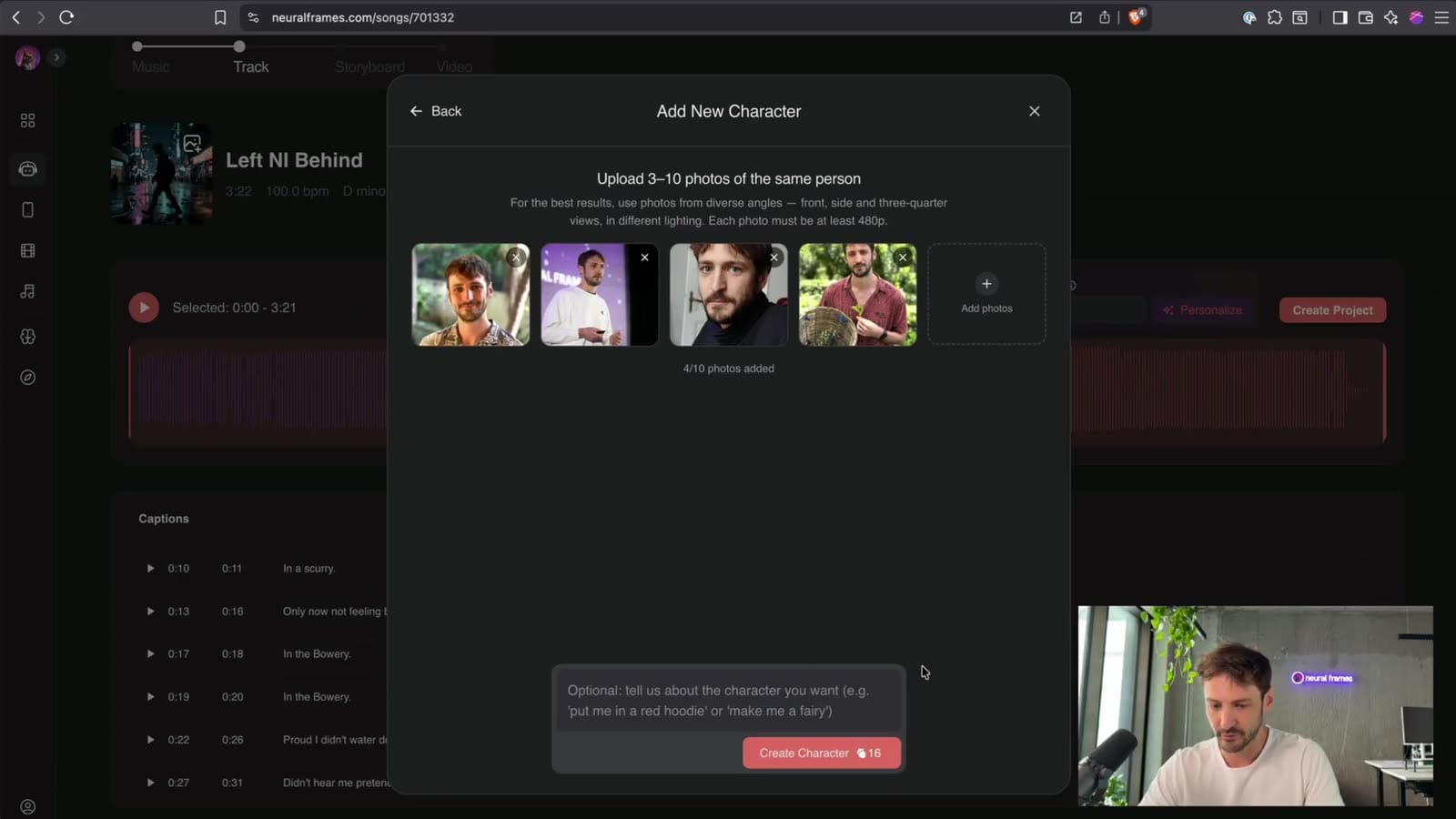
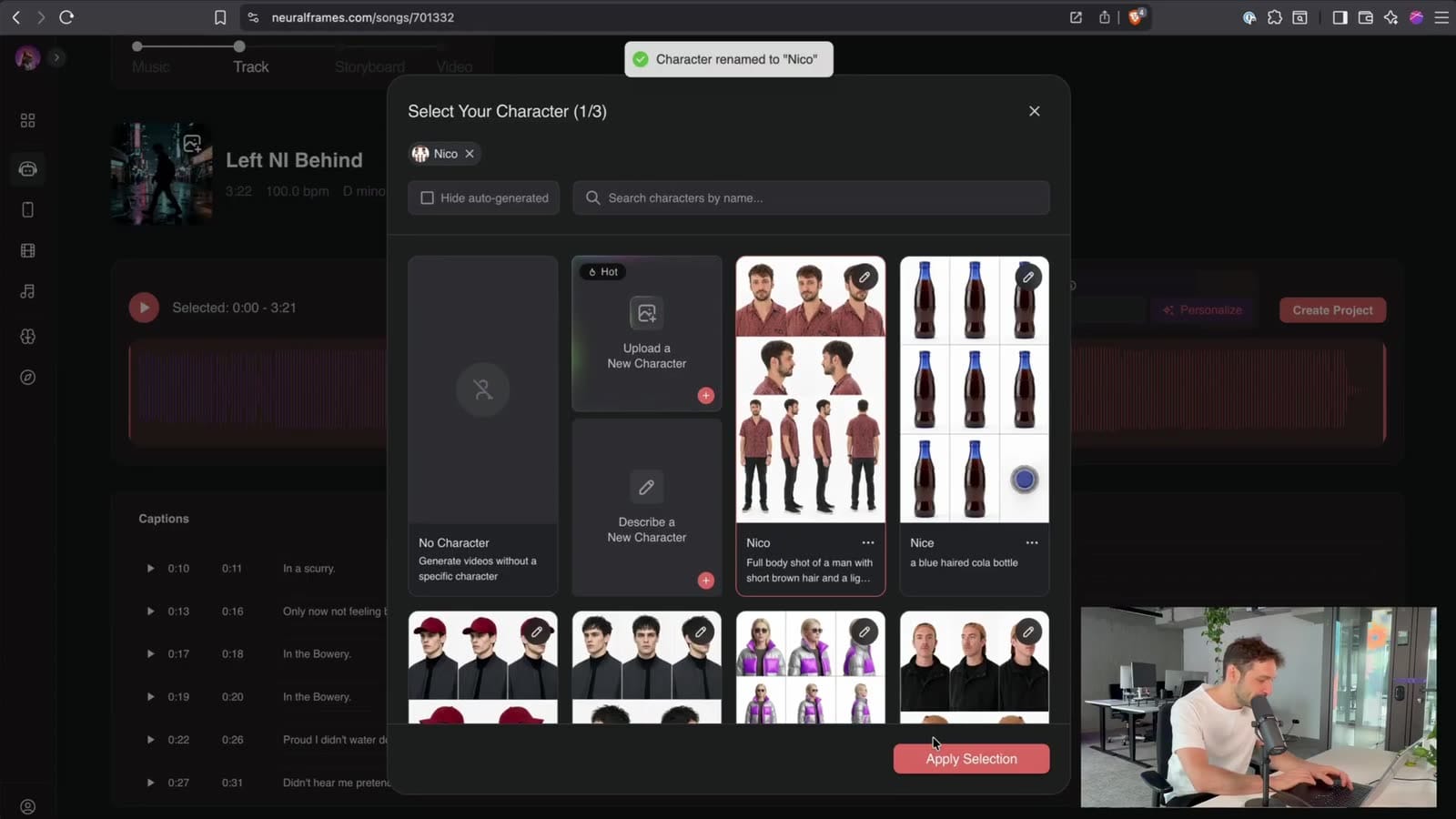
You can add a short description of how you want to look ("put me in a red hoodie"), or leave it empty. Neural Frames then builds a character card: a sheet of you from several angles that keeps your face consistent across every scene. Name the character and select it.
4. Add a concept or style (optional)
You can type a video concept or pick a visual style. In the tutorial, Nico skips both and lets Neural Frames read the song. If you do write a concept, be concrete: name places, objects and lighting rather than moods.
5. Create the project and choose Lyric Showcase
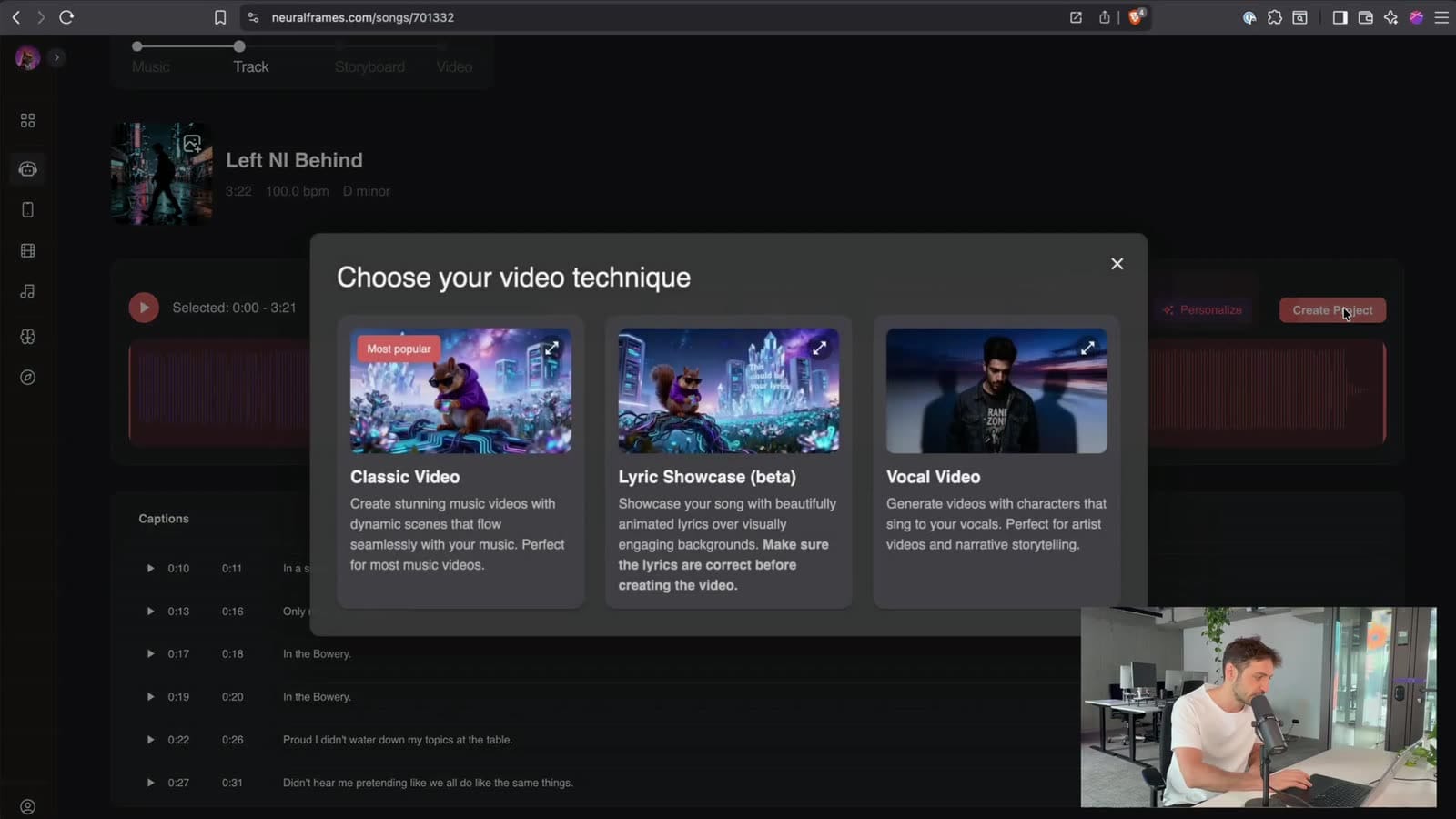
Click Create Project and choose your video technique: Classic Video, Lyric Showcase or Vocal Video (lip-sync). Pick Lyric Showcase.
6. Read the storyboard and pick a video model
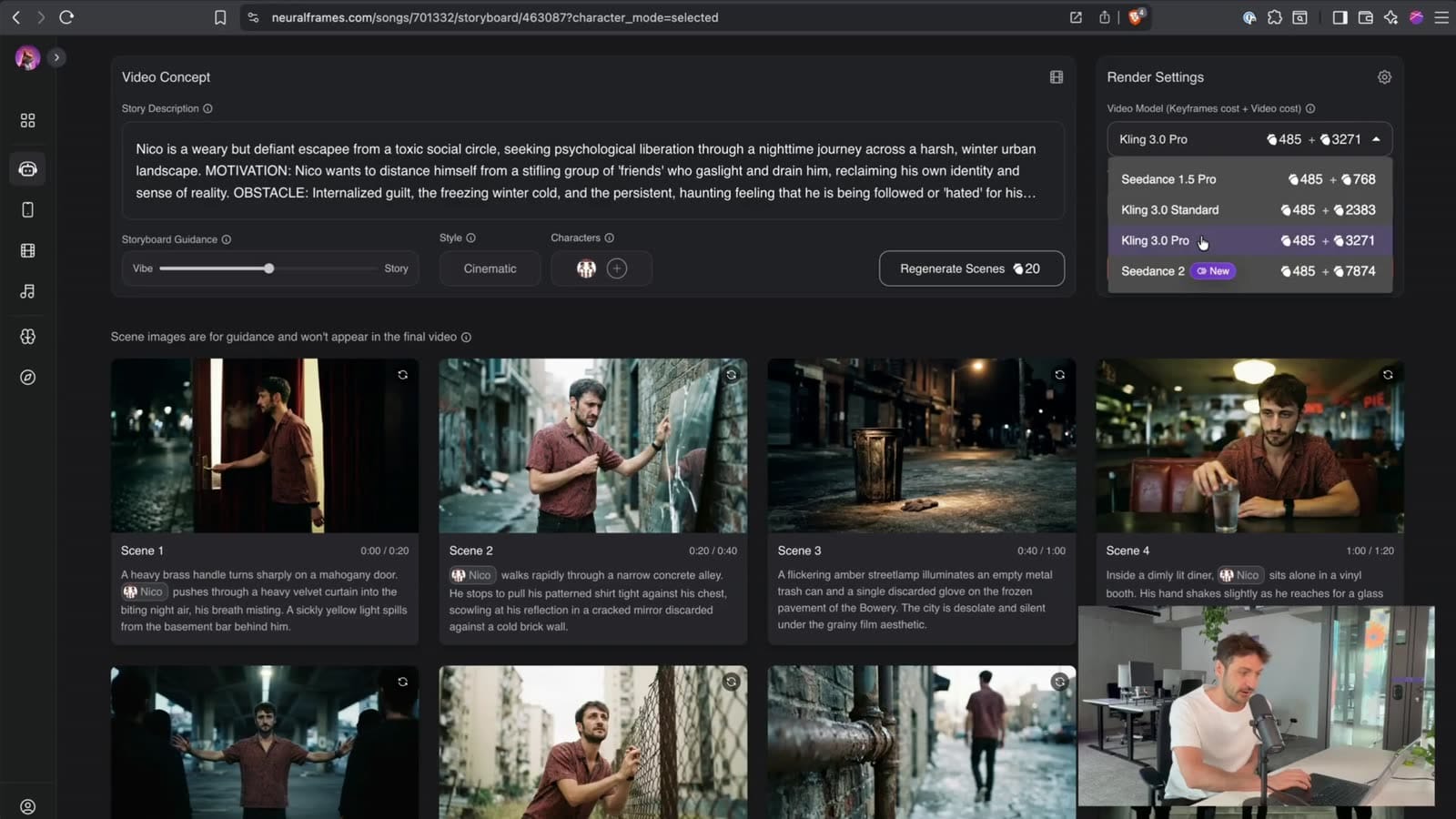
Neural Frames writes a story for your song and builds a storyboard of scenes with your character in them. For the tutorial track, it described Nico as an escapee from a toxic social circle on a nighttime walk through a harsh winter city, which was a fair summary of the song.
You can edit individual scenes, but for a lyric video it matters less than for a story-driven music video, because the words carry it. The scene images are only a guide and won't appear in the final video.
Then pick a video model in Render Settings. The dropdown shows the keyframe and video cost for each option. In the tutorial it listed Seedance 1.5 Pro, Kling 3.0 Standard, Kling 3.0 Pro and Seedance 2 (marked New). Nico picks Kling 3 Pro, which he calls "the second best model we have at the moment" and "amazing for lyric videos." The lineup changes as new models come out, so check what's there when you render.
7. Review the starting images
Neural Frames renders a starting image for each clip, with the lyrics written into the scene. In the tutorial, the first lines appear engraved in walls and on a stone pillar. Check every image before any motion is generated.
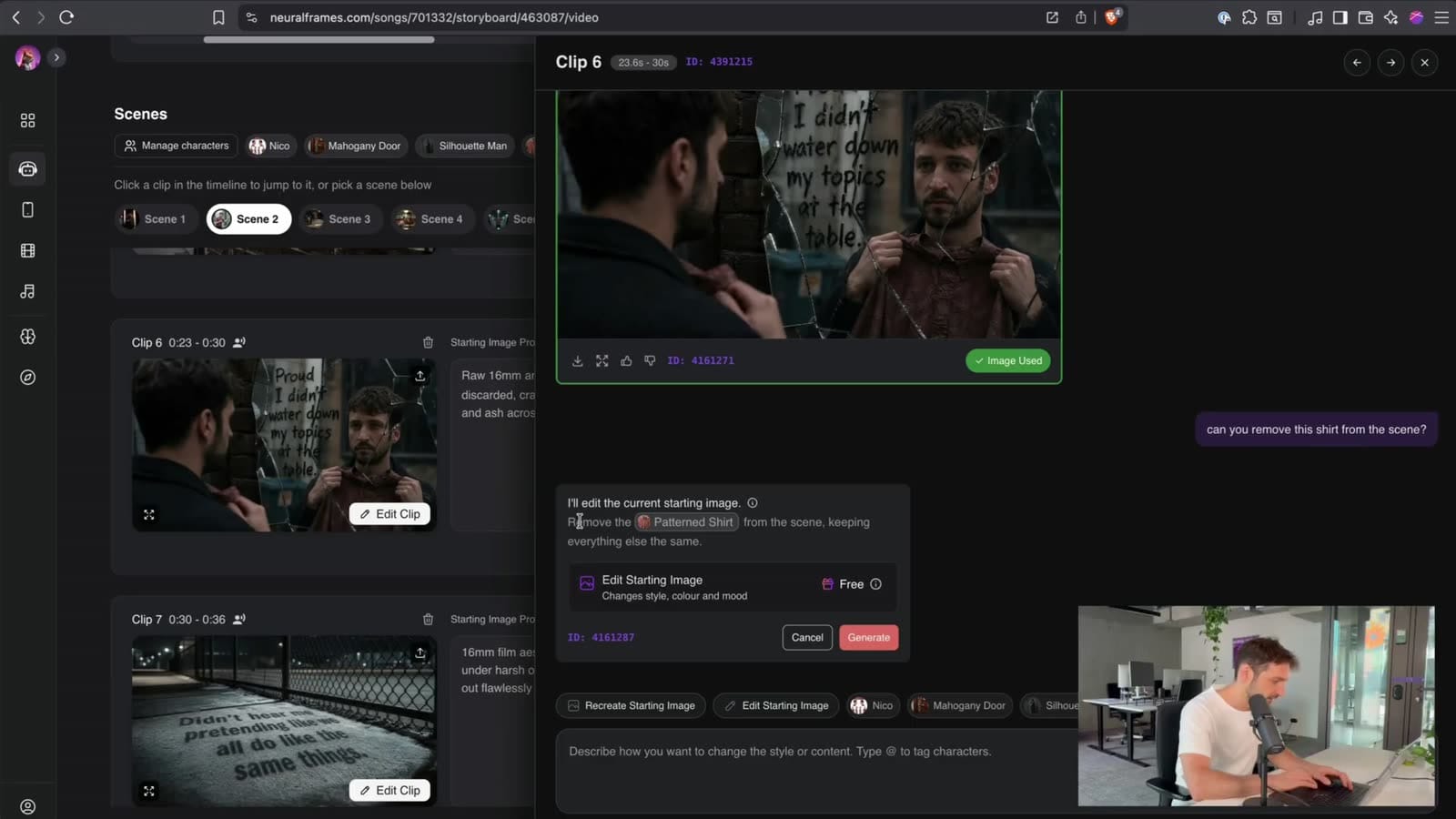
If something's off, open the clip and describe the change in plain language. Nico didn't like a patterned shirt his character was putting on, so he typed "Can you remove this shirt from the scene?" Neural Frames shows how it understood the request before it runs, and the result kept his face, the lyrics and the mirror, just without the shirt. Edits like this were free in the tutorial.
8. Adjust the timing on the timeline
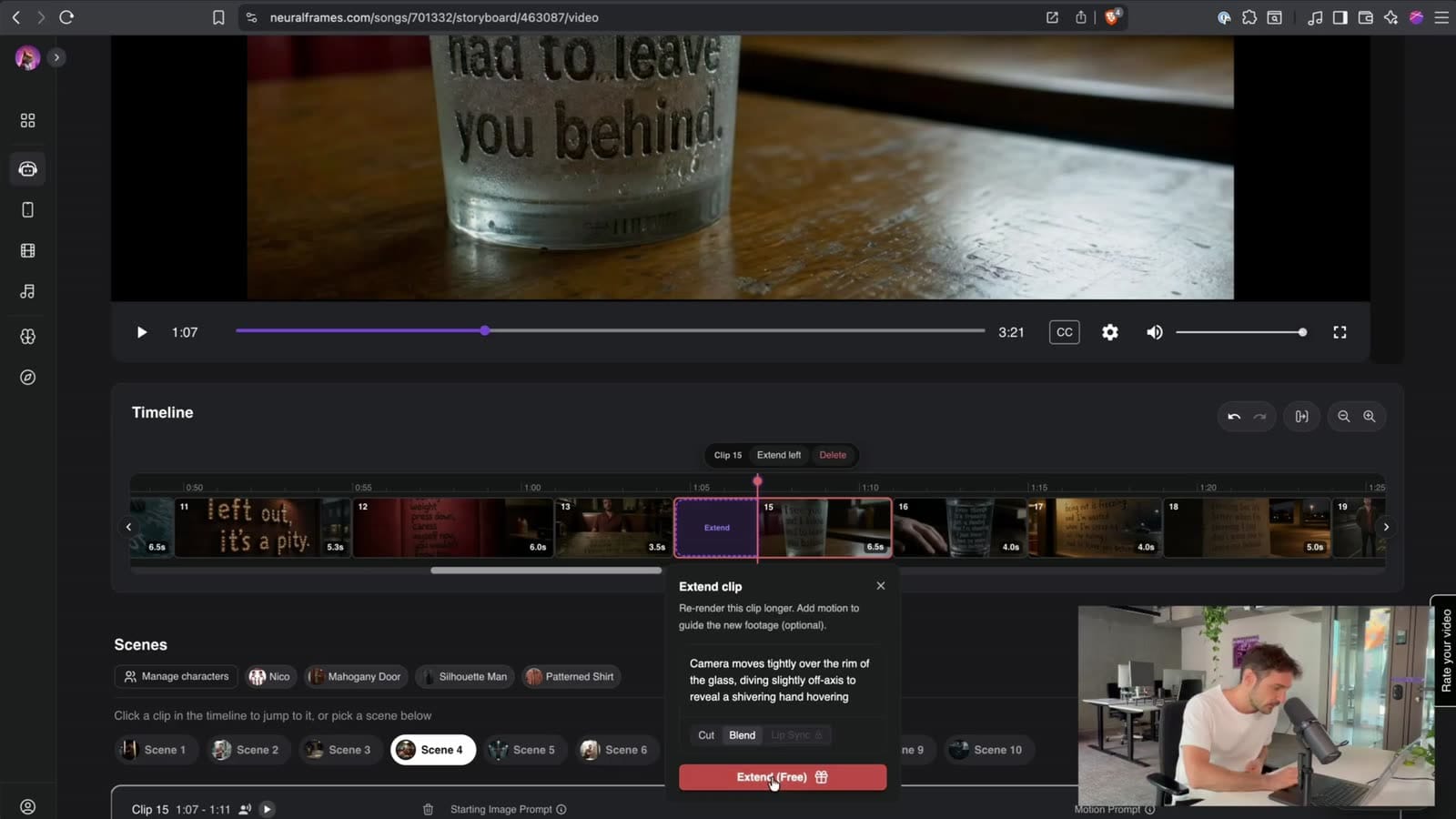
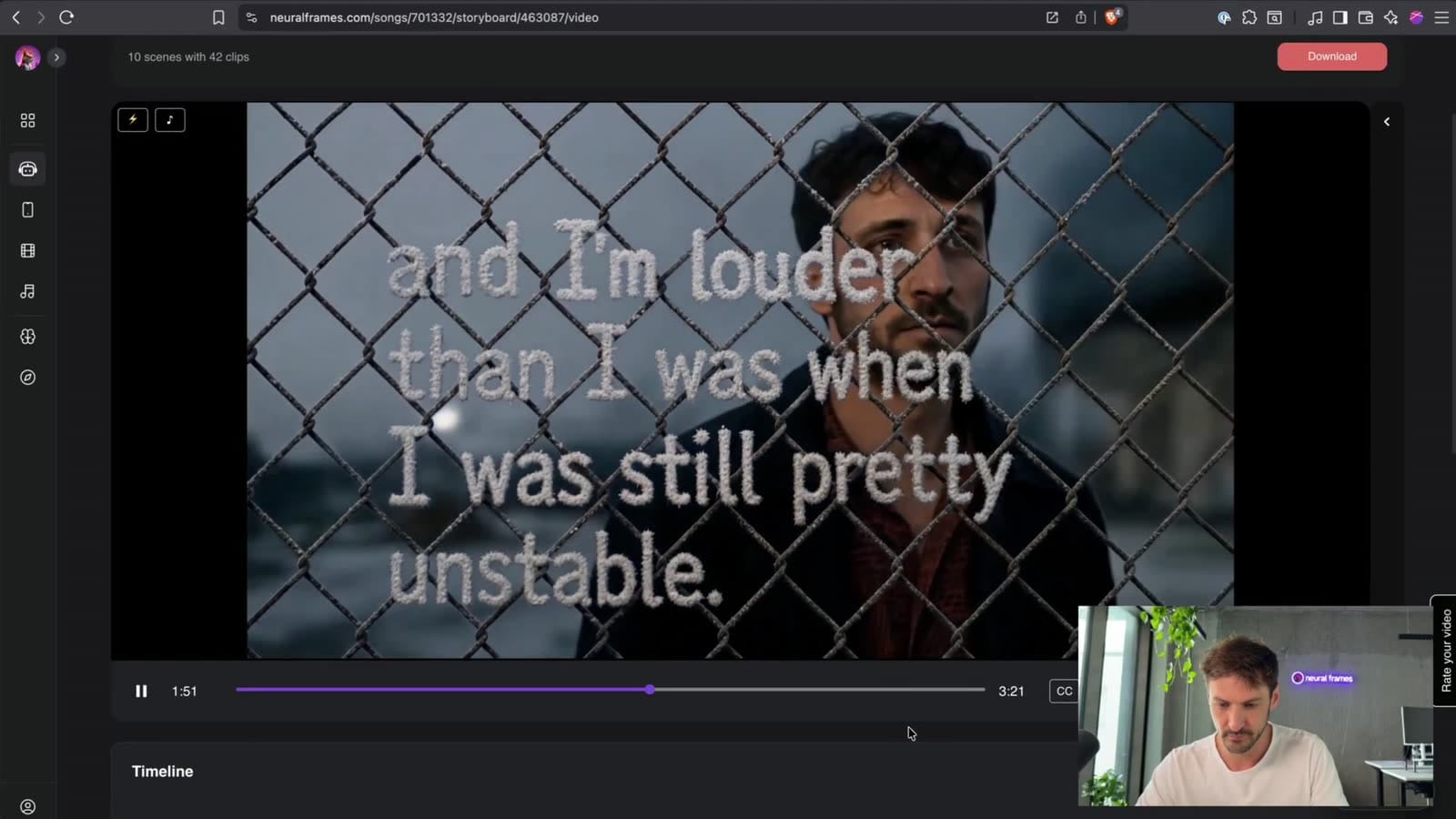
The timeline shows every clip, and you can make one shorter and the next longer so a line lands where it's sung. If a lyric shows up late, shorten the clip before it.
Don't chase perfection. As Nico points out, because the camera is always moving, "it is okay if single frames come a bit later than they feel like would be right." Fix the lines that clearly feel late and leave the rest.
9. Render, watch, and fix what's off
Render the video and watch it through with the sound on.
Timing. Go back to the timeline and stretch or shorten clips. To lengthen one, use Extend clip, which re-renders it longer. You can add a motion prompt to guide the new footage, and choose a Cut or Blend transition. Each project includes a number of free re-renders, so small fixes like this didn't cost anything in the tutorial.
Fonts and wrong lyrics. AI-rendered type can vary from scene to scene. In the tutorial, the video jumped from a sans-serif to a playful font and back again. Nico opened the clip and asked, "Can you make this a sans-serif font?" In the same edit he fixed a line that had been rendered wrong ("Don't call me insane. Now really, you're the real insane one"). The new image had the right words in a clean sans-serif on a brick wall.
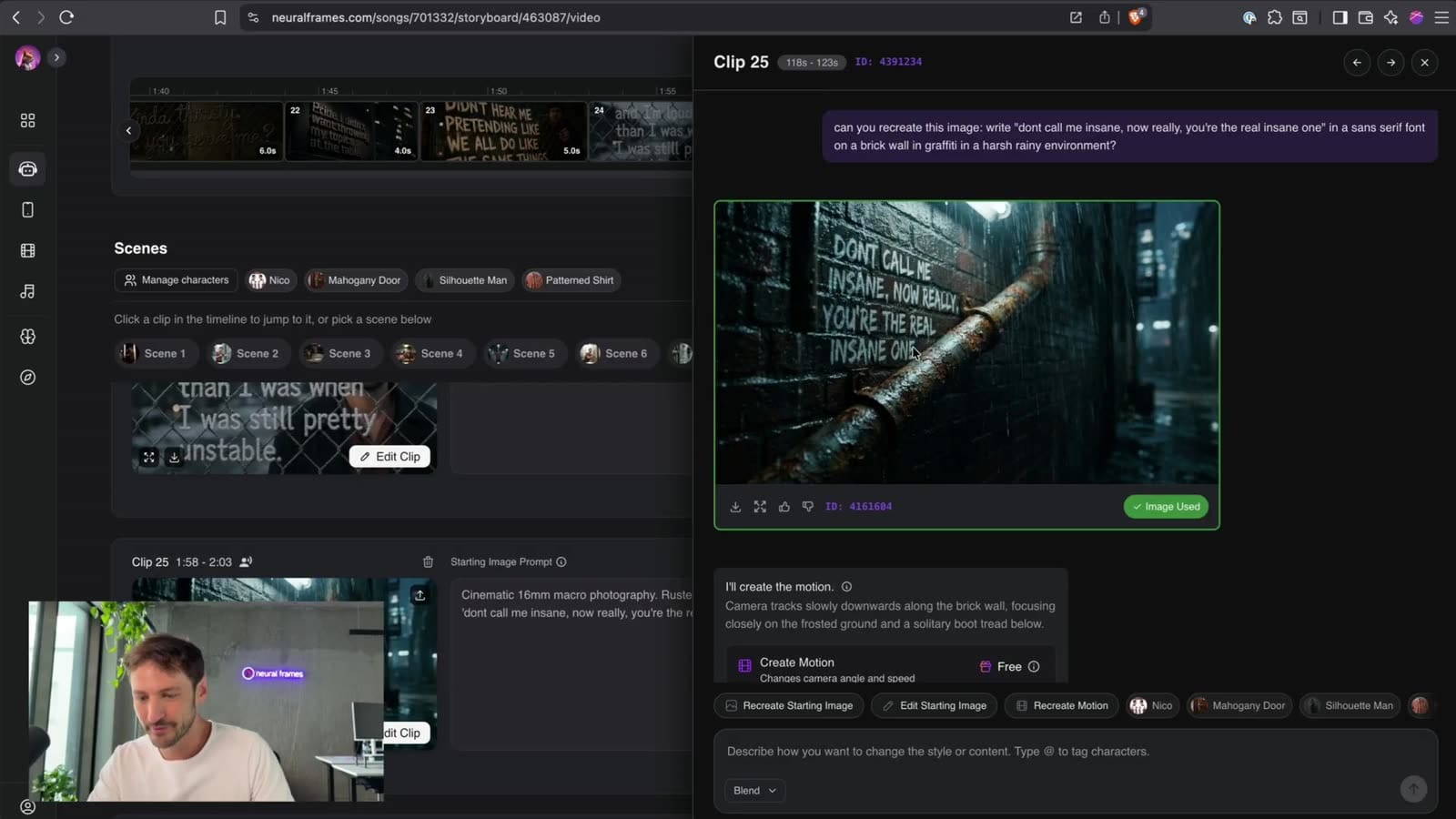
10. Re-render the clip before any changed image
Lyric Showcase uses Blend mode: instead of hard cuts, each clip flows from its starting image into the next one. So when you change an image, re-render the motion of the clip before it too. Otherwise you get a visible cut where a blend should be. A cut is fine, but the blend looks better.
11. Export
When the timing is right and the fonts are consistent, export in 4K. For socials, change the aspect ratio to 9:16 and select just part of the song on the song page to make a short vertical clip of the hook.
Try Lyric Showcase on Neural Frames →
Typography and readability
AI can render the words into the scene, but the same rules apply as with any lyric video. When you review keyframes, check them against these.
Big and simple beats clever. Adobe's guide puts it plainly: "Readability is crucial when the words might be on screen for only a second or two, so the letters should be large and easy to read." Judge your keyframes at phone size.
One or two lines at a time. Video editor Justin Odisho, quoted in the same Adobe guide: "It's kind of like karaoke — you don't want to see a whole page of the lyrics," and "One or two lines at a time will probably feel most natural." That's why splitting long lines in step 2 matters.
Contrast is not optional. Stefan Woronko, who has designed music video typography for Drake, Justin Bieber and Coldplay, told LBB that the main constraints are time and contrast: "You might only have two seconds to work with, which informs the animation, scale and positioning. There's also the matter of making sure that there's enough contrast with the image so you can read the type." For a benchmark, the W3C's web accessibility standard asks for a contrast ratio of at least 4.5:1, or 3:1 for large text. In practice: light text on dark areas, and never over a busy pattern.
Keep the fonts consistent. Mixing typefaces line to line looks like a mistake. Woronko tells a useful story here: for Drake's "Hotline Bling," the decision was made late "to follow the print artwork for the single (which was a good call)! That way, everything could be consistent." Matching your lyric style to your cover art is a good default.
Match the font to the mood. Odisho again: "If it's a fun summer song, maybe you want to do a bubbly font," but "you don't want to use a font like Comic Sans for a sad song." Clean sans-serifs suit most pop, rock and electronic music. Handwritten or serif styles suit intimate, acoustic songs, as long as they stay readable.
Timing words to vocals
Subtitlers' reading-speed rules work for lyrics too. The BBC Subtitle Guidelines recommend 160–180 words per minute and say "you should aim to leave a subtitle on screen for a minimum period of around 0.3 seconds per word (e.g. 1.2 seconds for a 4-word subtitle)."
For lyrics, that means:
- Fast verses can't hit full reading speed. Split them into short phrases so each stays up as long as possible.
- Break lines where the singer breathes. The BBC guidelines say lines should be broken "at natural linguistic breaks such that each subtitle forms an integrated linguistic unit." In a song, the natural break is usually the breath or the end of a musical phrase.
- Late is worse than early. A line that appears a beat before it's sung reads naturally. A line that appears after the word feels broken.
- Let instrumental sections breathe. Intros and breaks don't need text. Let the visuals carry them.
Match the visual style to the genre
The look tells viewers what kind of song this is before the first line. Starting points for your style and concept:
| Genre / mood | Visual direction | Concept prompt ideas |
|---|---|---|
| Lo-fi, indie, folk | Soft anime, painterly, warm | Rain on windows, autumn parks, small rooms, film grain |
| Pop | Bright, clean, bold color | Neon signs, pastel skies, glossy city streets |
| Hip-hop, rap | Urban, high contrast | Graffiti walls, night streets, billboards, subway cars |
| Electronic, techno | Abstract, futuristic | Light tunnels, lasers, chrome, empty warehouses |
| Rock, metal | Gritty, dark, textured | Concrete, fire, storms, worn posters |
| Ballads | Slow, minimal, intimate | Mirrors, candlelight, empty rooms, fog |
Lyric Showcase works best when the scene has surfaces for the words: walls, signs, screens, mirrors. In our tutorial, lyrics appear engraved in walls, on a stone pillar and on a mirror.
Neural Frames builds scenes from your lyrics, so they tend to be literal. If you want something more abstract, say so in the concept.
For more on keeping a character the same across a whole video, see our post on character-consistent music videos and lyric videos.
Formats: one song, several videos
- YouTube (16:9): The full-length official lyric video. This is what catches "song name + lyrics" searches. Export in 4K.
- Shorts, Reels, TikTok (9:16): Cut the hook, the chorus or your best line into short vertical clips. Per YouTube Help, vertical or square videos up to three minutes now count as Shorts, including on Official Artist Channels since December 8, 2025. Keep the lyrics in the middle of the frame, because the platforms' buttons and captions cover the edges.
- Spotify Canvas: Don't use a lyric clip here. Spotify's Canvas guidelines ask for a 3–8 second vertical 9:16 loop and specifically say: "Choose footage without talking, singing, or rapping. The clips are only 3-8 seconds long, so won't sync with the lyrics." Use a text-free scene instead. It's worth doing: Spotify says that "Adding a high-quality Canvas to a track has increased streams by up to 120% and saves by up to 114%" (Spotify for Artists). We have a full guide on making a Spotify Canvas with AI.
Common mistakes and how to fix them
Wrong lyrics on screen. Check every line against the final mix, not a demo. Fix the text in step 2, or later by editing the clip's image in plain language (step 9).
Lines arrive late. Shorten the previous clip on the timeline. Don't try to make every single frame perfect, just the lines that feel late.
Text is hard to read. Usually a contrast problem. Edit the keyframe so the lyrics sit on a plain, darker or lighter area, or ask for bigger text.
The style doesn't match what you picked. Your video concept might be pulling the other way. Rewrite it with concrete objects and settings that fit the style.
A cut appears where it should blend. You edited a keyframe but not the clip before it. Re-render the previous clip's motion.
Rendering on a rough mix. If the vocals change in the final master, the timing drifts. Always use the final master.
Releasing and promoting your lyric video
- Make it before you pitch. Spotify says to "Pitch at least 7 days before release day to pick the song for Release Radar" (Spotify). Have your visuals done by then, so teasers can go out in the same week.
- Tease with the hook in 9:16 clips before release.
- Publish the full video on release day. Use the song title plus "(Official Lyric Video)" in the title, put streaming links at the top of the description, and paste the full lyrics below them.
- Keep cutting clips after release: the hook, the bridge, your favorite line.
- Keep the look consistent across the lyric video, Shorts, Canvas and cover art.
For a broader promotion plan, read Promote Your Music & Build a Fanbase as an Independent Artist.
FAQ
How long does it take to make a lyric video with AI? Our 2026 walkthrough covers the whole process, start to finished 4K export, in under eight minutes of video. Give yourself more time for reviewing images and timing.
Can I put myself in my lyric video? Yes. Upload 3–10 photos of yourself to create a character card, and Neural Frames keeps you consistent across scenes.
What's the difference between Lyric Showcase and Vocal Video? Lyric Showcase puts your lyrics into the scenes. Vocal Video makes a character sing your song with lip-sync. Classic Video is a standard music video without either.
Can I use a lyric video as my Spotify Canvas? Not directly. Spotify asks for Canvas loops without singing or lyrics, because 3–8 second loops don't sync to the song. Use a text-free scene instead.
Start with one song
Pick a track, clean up the lyrics, and make the full 16:9 version first. Then cut two or three vertical clips from your best lines. That's a release's worth of visuals.